 TabTome
 Install the Firefox extension
 Install the Chrome extension
Build collections
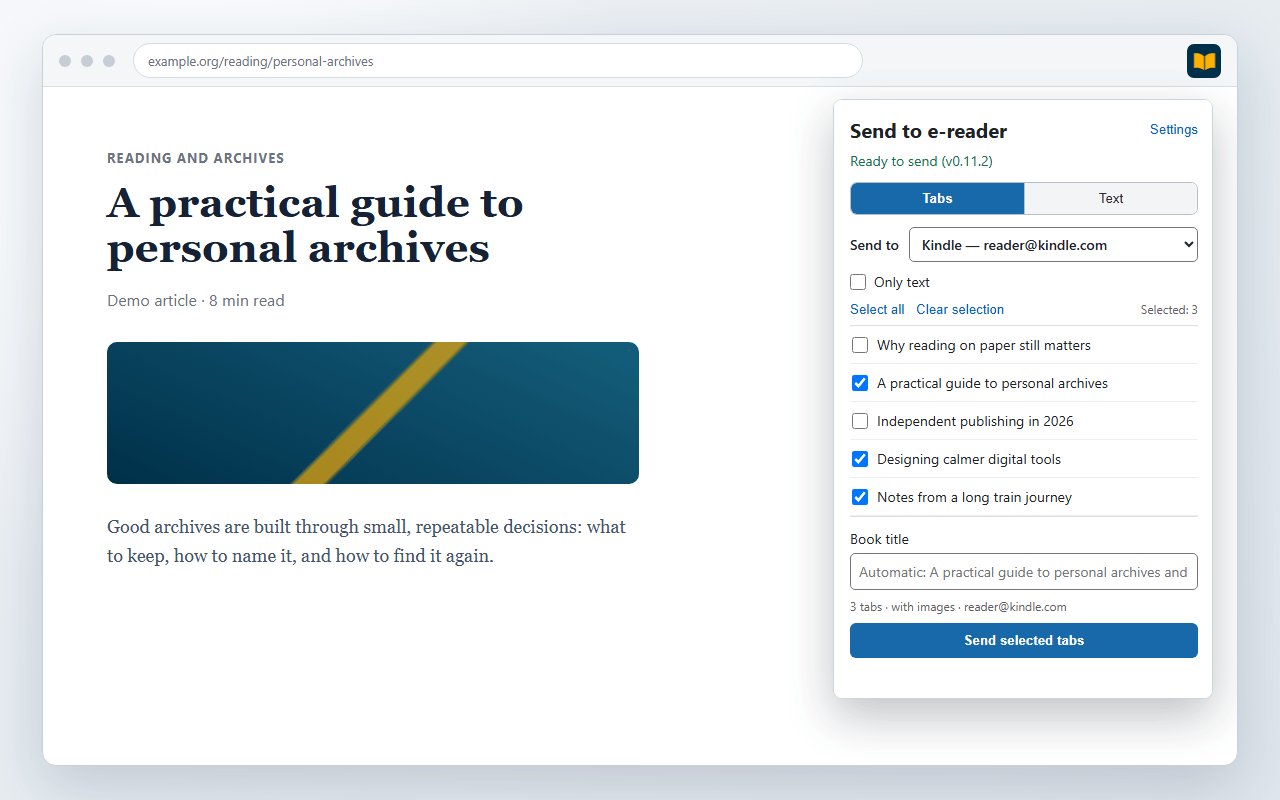
Put up to 25 tabs in one EPUB: a batch of long reads or pages on the same topic.
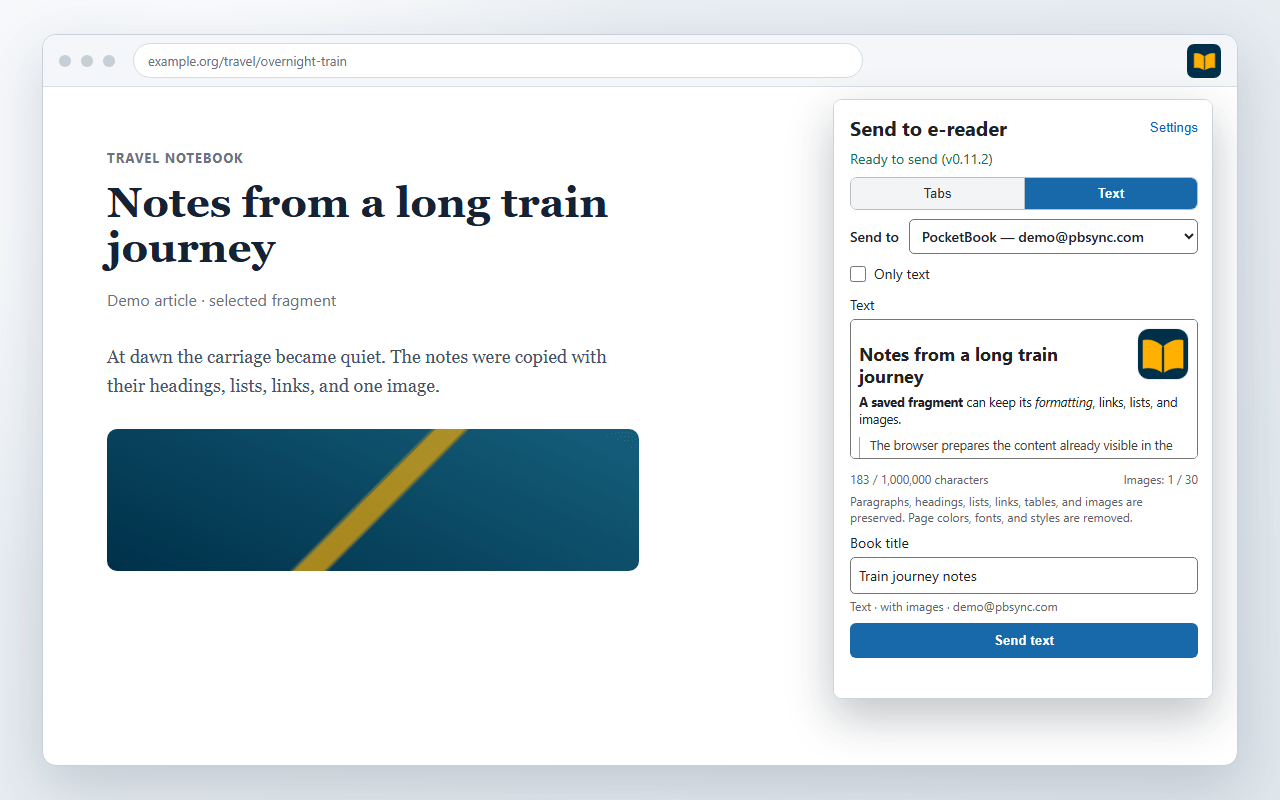
Read browser pages on Kindle or PocketBook. Choose up to 25 open tabs or paste your own text. TabTome builds an EPUB on your PC, emails it to your e-reader, or saves it to disk.
Put up to 25 tabs in one EPUB: a batch of long reads or pages on the same topic.
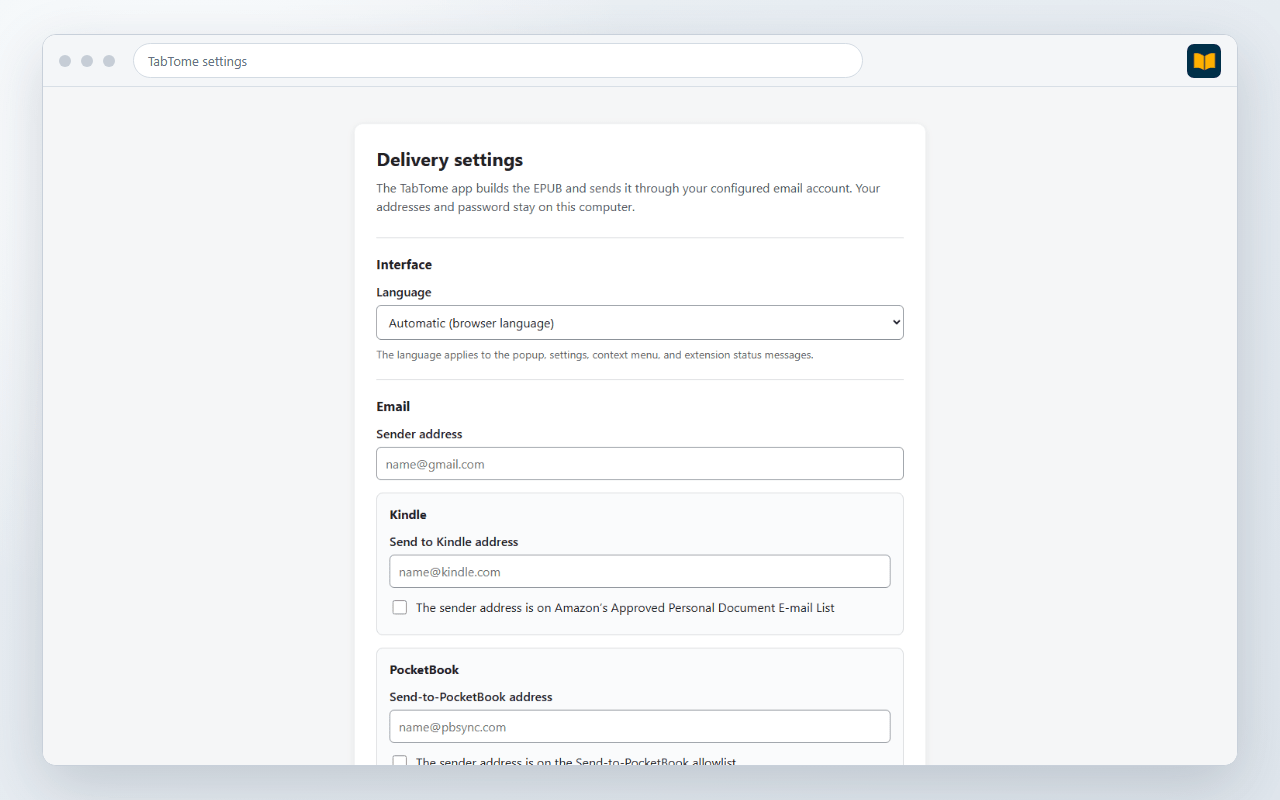
TabTome builds the EPUB and sends it to your e-reader through your email account or saves it on your computer.
The EPUB appears on your Kindle or PocketBook and opens like any other book.
Click the extension icon → select tabs or paste your own text → TabTome saves the text, links, lists, tables, and images to an EPUB → emails the book to your e-reader or saves the EPUB to your computer.
The TabTome developer receives no articles, books, email addresses, passwords, send history, or analytics. Read the full privacy policy.
name@kindle.com for Kindle or name@pbsync.com for PocketBook.Install the TabTome extension and Windows app.
The source code is available on GitHub. Read the privacy policy to see what stays on your computer and where the book is sent.
Download the Firefox extension here. You can install newer versions through Mozilla Add-ons.
Download the Firefox extension (.xpi)